How to Log In to TwoCum


LOG IN FOR SECURE ACCESS TO LIVE SEX CAMS.
How to Login on TwoCum
Managing your account credentials efficiently is the first step to enjoying an uninterrupted user experience. This comprehensive guide outlines the exact steps for navigating the TwoCum login, finding the official entry page, and managing your user credentials securely. You will learn how to access your profile on various desktop and mobile browsers, register safely using the platform’s verification system, and perform troubleshooting steps when you cannot access your portal. Follow these practical instructions for straightforward, secure account access.
Steps to Sign In to Your TwoCum Account
Logging into your profile is a straightforward process when you use the official portal. This section provides the precise, step-by-step instructions needed to ensure a secure TwoCum login connection.
Finding the Official TwoCum Login Screen
To guarantee data safety and secure account access and payments, always verify that you are on the legitimate web address. Avoid external promotional links, competitor references, or third-party redirection portals that mimic the platform’s interface.
The primary destination is the official TwoCum login page. Bookmark this URL in your preferred web browser to bypass potential search engine clutter and protect your identity online.
Entering Your Login Credentials Correctly
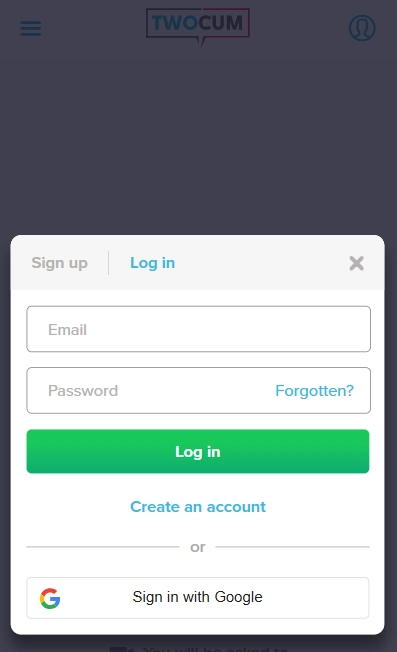
Once you arrive at the login screen, enter your designated TwoCum account login data carefully. Accuracy is vital to prevent accidental system lockouts. Follow these numbered actions to sign in:
- Click the “Login” button located at the top-right corner of the interface.
- Input your registered email address or username into the first designated text field.
- Enter your unique, case-sensitive password carefully into the second field.
- Double-check that your caps lock key is disabled before submitting your user credentials.
- Click the final submission button to access your profile dashboard instantly.
Using TwoCum on Mobile and Desktop Browsers
The web interface is highly optimized to ensure reliable functionality across a broad spectrum of modern digital devices. No dedicated application downloads are required to interact with your dashboard.
When using a desktop computer, standard browsers like Chrome, Firefox, or Safari provide full interface capability. For mobile devices, simply open your default mobile browser, load the main site, and execute the standard TwoCum login sequence to stay connected on the go.
Creating an Account Before Logging In
If you do not possess an active set of user credentials, you must complete the registration phase first. Joining this global network grants safe access to a verified ecosystem.
Registering for a New TwoCum Profile
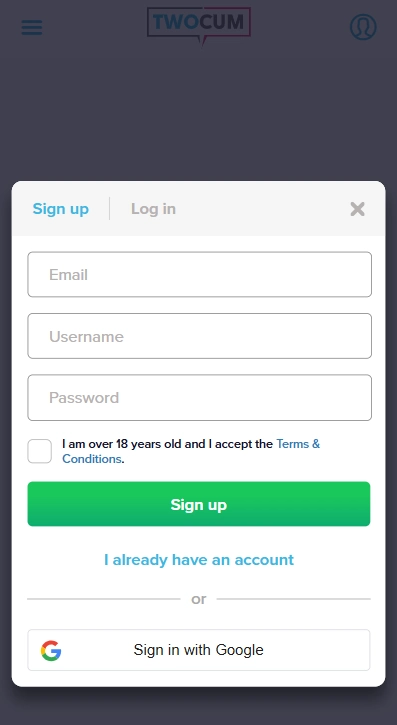
To create a new account, click on the official TwoCum sign-up link available on the homepage. As an established global platform serving more than 1 million registered users across more than 100 countries, TwoCum has clear rules in place for safe use of the platform.
During the registration phase, all individuals must pass a robust age verification system utilizing a valid government-issued ID. This mandatory compliance policy prevents underage access and ensures a safe, authentic environment for everyone.
Confirming Your Email Address After Registration
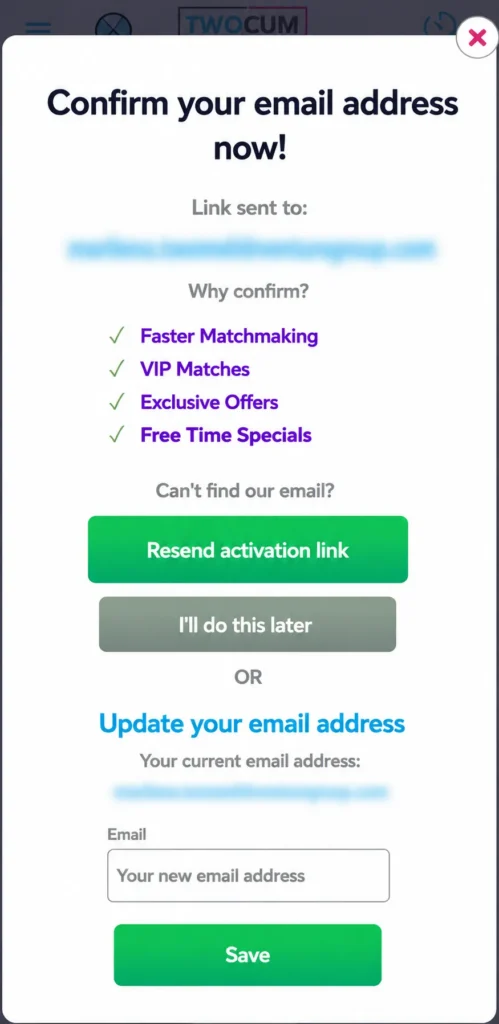
After submitting your ID verification and registration forms, you will receive an automatic email confirmation link in your inbox. Open your email client, find the official account communication, and click the verification button to activate your profile. Completing this mandatory step certifies your account status and allows you to use your updated credentials on the primary login page.
Troubleshooting Common TwoCum Login Problems
Technical disruptions, corrupted local data, or forgotten passwords can occasionally block access to your online portal. Use the following dynamic troubleshooting techniques to solve common TwoCum login errors efficiently.
| Error Symptom | Potential Cause | Recommended Fix |
| Forgotten Password | Incorrect credentials entered | Initiate a TwoCum password reset via email. |
| Locked Profile | Too many failed sign-in attempts | Wait 30 minutes for the safety cool-off period to clear. |
| Page Fails to Load | Browser cache error or network conflict | Clear browser history or open an incognito window. |
Recovering Access After Forgetting Your Password

If you forgot your password, do not attempt to guess it multiple times. An excessive number of incorrect entries will trigger an automatic security block on your account. Instead, navigate to the main sign-in portal and click the link labeled “Forgotten?” to begin an automated account recovery process. Input your primary email address to receive an encrypted link where you can safely establish new login parameters.
What to Do if Your Account Is Locked
Security parameters will automatically lock a user profile if multiple invalid attempts occur sequentially. If you can’t log in to TwoCum due to a security lock, be patient. The initial protocol is to wait 30 minutes for the automatic cooling-off period to clear. If you still face TwoCum login problems after this delay, contact the customer help center to complete an identity verification check.
Fixing a Login Page That Will Not Load
Sometimes the TwoCum login problems are caused by the browser or connection rather than the account itself. If the login screen keeps loading, refreshing, or showing an error, try these steps:
- Refresh the page once.
- Clear your browser cache and cookies.
- Disable extensions that may block scripts.
- Try another updated browser.
- Switch from Wi-Fi to mobile data, or the other way around.
- Restart your device if the issue continues.
If the page only fails on one browser, the problem is likely local to that browser. If it fails everywhere, wait and try again later or contact support.
Keeping Your TwoCum Login Secure
Preserving the integrity of your personal information requires strict digital hygiene. Maintaining rigorous control over your login endpoints prevents unauthorized third-party interference.
Tips for Protecting Account Credentials and Privacy
- Create Complex Passwords: Always generate a complex password combining numbers, special characters, and alternating letter cases.
- Avoid Public Saving: Never share your credentials with anyone, and refrain from saving your login data on shared or public workstations.
- Review Safety Guidelines: Ensure that you regularly check the safety protocols listed on the platform’s official Safety & Security page.
Keep your software updated and use a password for your TwoCum account that you don’t use for other services. This helps reduce security risks and protects your TwoCum account from unauthorized access.
Ready to Access Your Account?
The TwoCum login process is simple once your account is registered, verified, and connected to an active email address. Most access issues can be resolved by checking your credentials, resetting your password, confirming your email, or fixing browser-related problems.
Sign in to your TwoCum account now, or create a new account if you have not registered yet.
Frequently Asked Questions
Most login failures occur due to simple typos in the user credentials or an unverified profile status. Ensure your caps lock key is disabled and that you have successfully finalized your mandatory ID age verification and email confirmation steps. If the issue remains, clearing your browser cache files can restore standard portal function.
Yes, an active profile is mandatory to explore the platform’s internal structure and core systems. Registration is completely streamlined and open to users worldwide across more than 100 countries, provided you fulfill the standard age verification.
To restore your account access, select the recovery link situated directly below the primary input fields on the login window. Enter the exact email address associated with your dashboard to receive an encrypted reset message.
Yes, the platform is engineered to function fluidly on all updated mobile browsers without downloading distinct software applications. Simply open your phone’s internet browser, navigate to the main web address, and use the standard sign-in interface to gain access.
Discover related articles